
How to Clip in Ascent — 2 Easy Methods (2026)
Can't find the clip button? Here's exactly how to make clips in Ascent — both from recorded games and on-demand with a hotkey, just like ShadowPlay.
Two Ways to Clip in Ascent
Ascent gives you two ways to create clips from your gameplay. Which one you use depends on whether you're clipping from an already-recorded game or you want to save a moment on-the-fly while playing.
Both are dead simple once you know where to look.
Method 1: Clip From a Recorded Game
If you've already recorded a game with Ascent, you can go back into the replay and clip any moment you want. Here's how:
Steps
- Open Ascent and go to the game you want to clip
- Open the replay viewer
- Scrub the timeline to the moment you want
- Click the Clip button in the bottom-right of the replay viewer
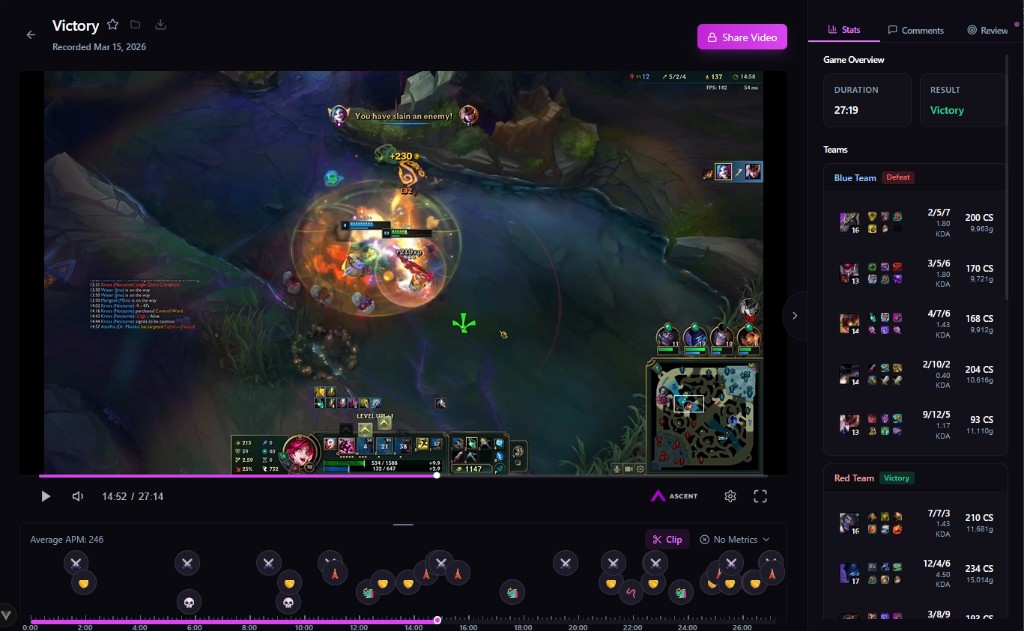
That's it. Ascent will let you trim the clip and save or share it from there.
Why Can't I Find the Clip Button?
This is the most common question we get. The button is easy to miss because it sits in the bottom toolbar next to the metrics dropdown — not in a menu or sidebar. Look for the scissors icon labeled Clip at the bottom-right of the player.
Method 2: On-Demand Clipping (Like ShadowPlay)
If you want to clip moments as they happen — without going back into a replay — Ascent has a save clip feature that works exactly like NVIDIA ShadowPlay's Instant Replay.
When enabled, Ascent keeps a rolling buffer of your gameplay in the background. When something sick happens, you press a hotkey and it saves the last X seconds as a clip.
How to Enable It
- Open Ascent
- Go to the Recording tab in settings
- Scroll down to Clip Settings
- Toggle Save Clips on
- Set your preferred clip length (default is 30 seconds)
- Set your hotkey (default is F8)
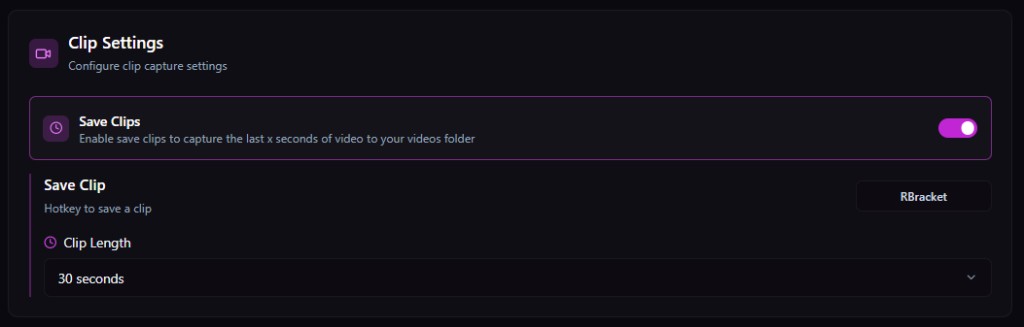
How to Use It
Once it's enabled, just play your game normally. When something happens that you want to save:
- Press your clip hotkey (default: F8)
- Ascent saves the last 30 seconds (or whatever length you configured) as a clip
- The clip appears in your videos folder
No need to open Ascent, no need to scrub a replay. It just saves the moment instantly.
Customization
You can adjust the clip length from 15 seconds up to several minutes depending on how much you want to capture. A shorter clip length means smaller file sizes and quicker saves.
Which Method Should I Use?
| From Replay | On-Demand (Hotkey) | |
|---|---|---|
| Best for | Precise edits after the game | Quick highlights mid-game |
| When to use | You forgot to clip in the moment, or you want to trim exactly | You just hit a play and want it saved immediately |
| Requires | A recorded game in Ascent | Save Clips enabled in settings |
| Default hotkey | N/A (use the Clip button) | F8 |
Most players use both — on-demand clipping for instant saves during the game, and the replay clipper when they want to go back and grab something they missed.
Quick Troubleshooting
On-demand clip isn't saving anything
- Make sure Save Clips is toggled on in Recording > Clip Settings
- Check that your hotkey isn't conflicting with a game keybind
- Verify you have enough disk space
Clip button not showing in the replay viewer
- Make sure you're viewing a recorded game (not a live session)
- Try scrolling or resizing the player window — the button may be off-screen on smaller displays
Start Clipping
Whether you're saving a clutch round, a pentakill, or just a funny moment with friends — Ascent makes it easy to clip and share.
Download Ascent if you haven't already, and start clipping your best plays.